Figma · August 23, 2026 · 9 min read
Using Figma Dev Mode for Handoff
Use Figma Dev Mode to inspect ready designs, variables, component properties, assets, annotations, and versions within a documented handoff process.
By Polo Themes
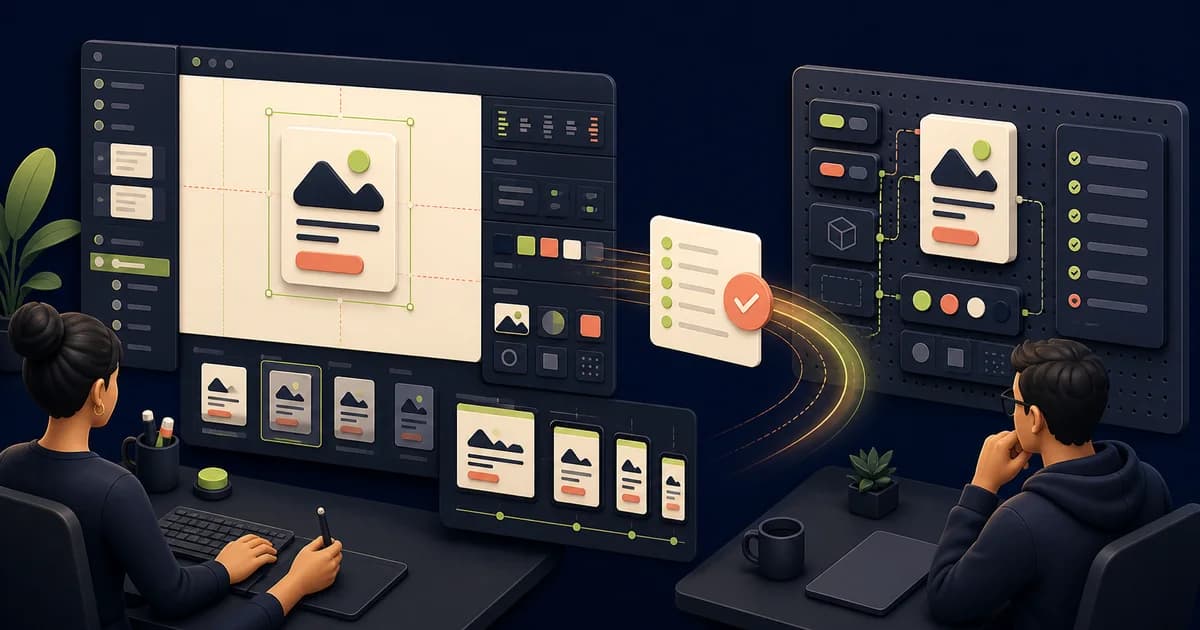
Dev Mode makes design inspection more developer-focused, but it does not create shared understanding by itself. Mark what is ready, annotate decisions and edge cases, connect code where available, and keep a clear route for questions.
Key Takeaways
- Define readiness before inviting implementation.
- Expose the correct mode, component source, variable meaning, and responsive behavior.
- Annotate data ownership, interaction states, accessibility, and unresolved questions.
- Close the loop by comparing the implementation with agreed evidence.
What makes a design ready for development?
Figma’s “Guide to Dev Mode” names seven developer uses, spanning inspection, version comparison, readiness annotations, integrations, variant exploration, resource links, and side-by-side coding. Treat ready as a claim across that surface: approve content hierarchy, shared foundations, states, responsive intent, assets, data ownership, accessibility notes, and every unresolved question’s owner.
Try the status on a purchase panel with realistic copy, unavailable options, validation, loading, and failure. If the implementer must guess where price originates or what focus does after an error, the frame is not ready. The e-commerce website design pillar supplies the wider route and state inventory for that decision.
Use a consistent section name, readiness status, and version marker. Keep explorations in a separate area and archive superseded directions. Developers should be able to distinguish approved scope from examples and identify who can answer a question without searching comments across the entire file.
Which implementation evidence should you inspect?
Figma’s “Guide to inspecting” enumerates seven property categories: layout, color, typography, text strings, component properties, styles, and variables. Inspect those alongside interactions, annotations, assets, component variations, and version differences. Generated snippets are evidence about the selected layer, not authority over semantic markup, existing tokens, application architecture, or browser behavior.
For a sale-price component, trace the semantic color alias, type style, component property, long label, interaction, and linked ticket before copying a value. Compare each finding with the codebase counterpart. The design-to-development handoff guide assigns owners when inspected evidence conflicts with implementation rules or leaves behavior unanswered.
- Trace semantic variable aliases.
- Check component property combinations.
- Download only approved assets and formats.
How should you verify the inspected mode and context?
Figma’s “Overview of variables, collections, and modes” defines six variable types, each of which can sit behind aliases and mode-specific values. Before copying anything, confirm collection, active mode, nested overrides, responsive example, product state, and version. A numerically correct value from the wrong market, density, or color context is still an implementation defect.
A surface value may resolve to white in both a default theme and a campaign mode while serving different semantic roles and future changes. Ask for the alias, not merely the hex value, and cite the selected frame version in review. The Figma-to-code guide carries that context into tokens, props, and layout rules.
How should you prepare variables, components, and styles?
Figma’s “Overview of variables, collections, and modes” documents six variable types, while “Guide to components in Figma” separates main components from instances. Prepare both systems together: replace accidental values, name semantic roles, expose supported properties, remove impossible combinations, and test long content, nesting, focus, error, disabled, unavailable, and loading states.
Build one product card matrix that crosses sale status, missing image, long title, and narrow width. If a combination breaks, decide whether it is unsupported or the component needs repair; do not leave an attractive impossible state. The variables and design-tokens guide establishes alias names developers can recognize in code.
Dev Mode can show variable details, modes, aliases, component properties, and suggested variables. Use that information to find drift, but review suggestions rather than applying them mechanically. Two values can match numerically while having different semantic roles and future behavior.
How should you annotate behavior data and accessibility?
W3C’s “Understanding Success Criterion 2.5.8: Target Size (Minimum)” specifies a 24-by-24 CSS-pixel baseline with exceptions. Annotations should pair measurable constraints like that with behavior Figma cannot infer: triggers, state transitions, validation, persistence, focus, announcements, loading, recovery, and the authoritative owner of every dynamic value.
A measured add-to-cart button still leaves important questions: does an unavailable selection disable it, where does validation appear, what changes after success, and which service supplies price? Write those answers beside the relevant state. The Figma asset-export guide handles the separate annotation needs for icons and product media leaving the file.
Provide intended headings, landmarks, control names, reading and focus order, text alternatives, non-color cues, and reduced-motion behavior. Keep legal, security, or platform decisions linked to their authoritative source. An annotation should clarify implementation intent, not invent unsupported requirements.
How should you prepare and verify assets?
Figma’s “Guide to Dev Mode” documents four export formats—PNG, JPG, SVG, and PDF—and can expose full-resolution image sources separately from layer exports. Mark approved assets, select format by purpose, preserve masters, confirm licenses, and record bounds, crop, naming, color behavior, and accessible intent. Verification belongs in the delivered component, not the download panel.
Inspect a logo, functional icon, and variant-specific photograph as three different contracts. Check SVG inheritance for the icon, transparent bounds for the logo, and crop plus variant mapping for the photo. The editable PoloThemes Figma bundle keeps those cases beside realistic storefront frames so handoff can be rehearsed end to end.
Figma currently documents PNG, JPG, SVG, and PDF exports, while Dev Mode can surface supported downloadable assets. The codebase may transform these into other delivery formats. Verify optimized output, responsive source selection, color, dimensions, and accessibility in the running product.
How can you use inspection and code connections carefully?
Figma’s “Guide to inspecting” offers three generated-code choices—CSS, iOS, and Android—even without Dev Mode. That plurality is the warning: snippets describe selected visual properties, not production architecture. Reconcile inspected values with semantic markup, established tokens, project components, runtime data, responsive rules, browser behavior, security, and performance before treating any output as implementation guidance.
Code Connect can improve the path when a maintained counterpart exists, but the mapping needs an owner and supported examples. Leave an honest gap where no production component exists. A stale association that points to the wrong prop contract creates more rework than an annotation that asks the developer to choose the local pattern.
Where the team maintains connected code components, link the approved counterpart and keep mapping current. Do not imply that every canvas component has a code equivalent. A stale connection is worse than an honest gap because it directs developers to the wrong API.
How do you run the handoff walkthrough?
Figma’s “Guide to Dev Mode” lists seven developer workflows, so a useful walkthrough samples the whole handoff rather than narrating pixels. Follow the shopper journey, then inspect a component, version change, annotation, variable mode, asset, code connection, and linked ticket. Ask implementers to explain risks and intended behavior back in their own words.
Spend most of the meeting on seams: a price update that crosses data and presentation, a responsive composition change, or an error that moves focus. Record decisions where the team will maintain them and assign unresolved questions. Values already visible in the inspect panel do not need a spoken tour.
Record decisions in a shared, durable location and update the source rather than relying on meeting memory. Assign questions and dates. A walkthrough should focus on seams and risk, not narrate every pixel already available through inspection.
How should you prepare before inspection?
Figma’s “Guide to inspecting” exposes seven property categories to reviewers, which makes accidental names, raw values, and placeholder strings visible alongside approved decisions. Before handoff, clean those categories, set asset exports, separate experiments from ready sections, verify modes, and annotate responsive behavior, data ownership, accessibility, exceptions, and unresolved questions.
Invite a developer to inspect one representative slice without narration. Note every ambiguous layer, orphan style, unexplained override, impossible property combination, and missing state they encounter. Repair the source or document the exception before applying ready status; tidiness matters only insofar as it reduces incorrect inference.
- Mark approved scope.
- Remove accidental raw values.
- Document state transitions and ownership.
How do you maintain feedback during implementation?
Figma’s “View a file's version history” says autosave checkpoints are recorded every 30 minutes, while Starter teams can view only 30 days. Name accepted baselines rather than relying on that timeline alone. Review an early vertical slice, tie questions to frames or tickets, and notify implementers whenever ready scope changes.
When a designer changes validation copy, the team should know whether the coded state, tests, translation, and acceptance example also change. Mark the revised section, link the decision, and compare against the named baseline. Quiet edits force developers to discover scope drift through visual comparison or rework.
Capture deviations with reasons and decide whether design, code, or both should change. Dev Mode version comparison can help locate visual changes, but the team still needs a release and communication rule. Revalidate affected requirements rather than assuming a small canvas edit has small product impact.
How should you close handoff with production evidence?
W3C’s “Understanding Success Criterion 1.4.10: Reflow” uses a 320-CSS-pixel width for horizontal-language content, equivalent to 400% zoom from 1,280 pixels. Close handoff by testing that stress case plus realistic data, keyboard, assistive technology, motion preferences, network failure, and content extremes in the integrated route—not a component playground.
Compare the running journey with approved intent, then classify differences as implementation defects, accepted platform behavior, source-design corrections, or open risks. Keep design approval, code review, automated checks, deployment, monitoring, and human acceptance as separate evidence gates. Update canonical components only after the decision is owned.
Keep design approval, code review, automated tests, deployment, monitoring, and human acceptance as distinct gates. Update canonical components and documentation after accepted changes. The handoff ends for a scope when evidence is reviewed and gaps are owned, not when the original Figma link is sent.
Close the feedback loop
Link design work to tickets and coded components where the team supports it. Track questions and changes in a shared place, re-mark updated frames, and hold a short implementation review for high-risk flows. A handoff is complete when ambiguity is managed, not when a link is sent.
- Name a design contact.
- Record accepted deviations.
- Review the running implementation.
Audit one ready-for-development slice
Select a versioned product purchase panel marked ready and ask an implementer to use Dev Mode without live narration. Include variables, component properties, responsive examples, assets, long content, loading, unavailable selection, validation, and add-to-cart feedback. Note every moment the implementer must leave the handoff, infer a rule, or ask which frame is authoritative.
Compare inspected values with existing tokens and components rather than copying measurements. Verify annotations explain behavior and data ownership, assets have export and accessibility intent, and ready status points to an immutable baseline. Branches and later experiments must not silently change scope. Resolve any conflict between exposed values and code conventions explicitly.
Review the running slice together across widths, content extremes, keyboard behavior, network failure, and actual platform data. Classify discrepancies as missing intent, implementation error, accepted platform difference, or unresolved choice. Feed repeated questions into component documentation and readiness criteria so Dev Mode supplies dependable evidence rather than replacing communication.
Implementation checklist
- Approved frames and versions are unambiguous.
- Variables, assets, and properties are intentional.
- Behavior and edge cases are annotated.
- Questions and deviations have owners.
Conclusion
Dev Mode improves access to design evidence. Pair it with readiness discipline and an active feedback loop, and handoff becomes continuous collaboration instead of a one-way delivery.
Frequently asked questions
Is Dev Mode available on every Figma plan?
Figma's current documentation describes Dev Mode as a paid-plan capability requiring an appropriate seat. Check the official plan documentation because access rules can change.
Are Dev Mode snippets production code?
No. They reflect inspected properties, but developers still need to apply project architecture, semantics, tokens, responsiveness, accessibility, and testing.