Guides · August 23, 2026 · 7 min read
How to Run a Shopify Theme Speed Test
Run a repeatable Shopify theme speed test with field data, controlled Lighthouse trials, median results, traces, and journey regression checks.
By Polo Themes
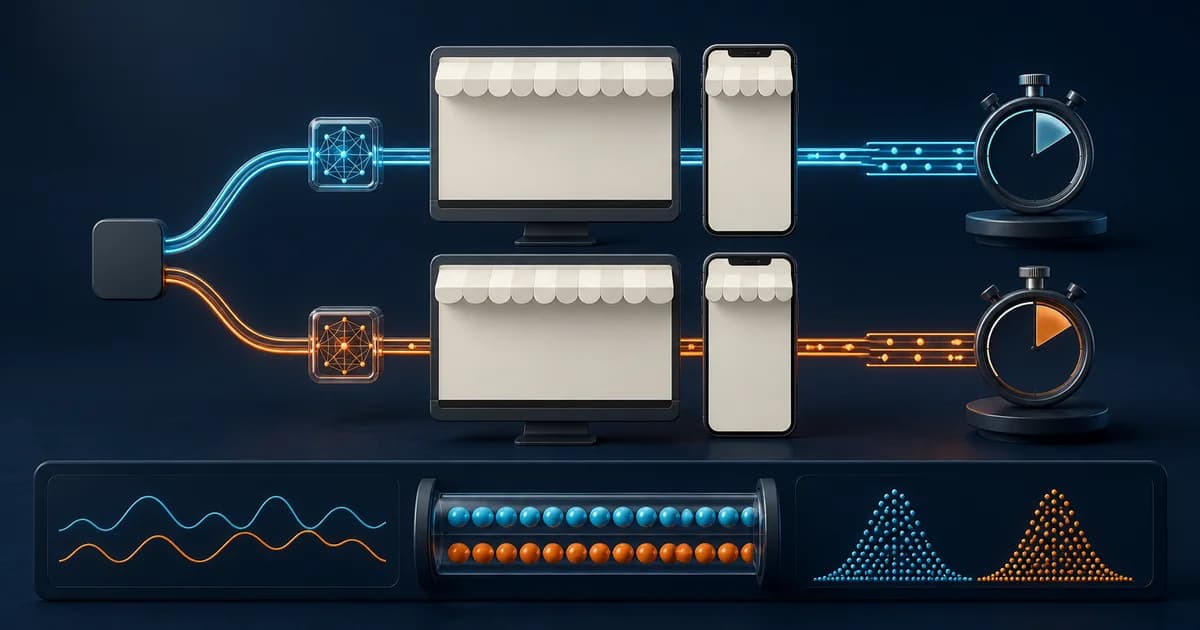
A useful Shopify theme speed test is a controlled comparison, not a single score copied from a report. Test representative home, collection, and product pages under the same device and network settings, run each case several times, record the median, and retain the trace. Use Shopify’s real-user dashboard to decide where customers struggle, laboratory tools to diagnose a specific page, and field data again to verify that a released change helped.
This method separates theme performance from content, apps, traffic, and testing noise. It also prevents a common mistake: declaring a draft theme faster because one warm desktop run beat one cold mobile run on production. The result should tell a developer which stage is late, give a merchant a reproducible baseline, and preserve enough evidence to repeat the test after a change.
Define the question before opening Lighthouse
Write the decision the test must support. You might be comparing two themes, checking whether a new hero harms loading, investigating slow variant changes, or setting a release baseline. Name the pages, device class, network profile, market, consent state, login state, and interaction. If the question is vague, teams tend to optimize whichever number looks weakest rather than the buying task that matters.
Create a small representative matrix. Include the homepage, a populated collection, a typical product, the heaviest product with real media and variants, and cart or search when those templates are changing. Shopify’s official benchmark uses home, product, and collection pages; a merchant regression suite should add business-critical exceptions. Do not substitute an empty demo page for the catalog customers use.
Start with Shopify field data
Open the Shopify Web Performance dashboard and review Core Web Vitals by page type, device category, and geography where enough data exists. Largest Contentful Paint describes the timing of the main visible content, Interaction to Next Paint describes responsiveness, and Cumulative Layout Shift describes unexpected movement. Record the reporting window and sample context rather than copying only the headline status.
Field data captures actual visitors, devices, connections, theme code, apps, and content. That makes it the best evidence of customer impact, but a poor tool for isolating one code change because traffic mix and the aggregation window vary. Low-traffic or new stores may not have enough data. Use the field report to choose a problem and a page group, then move to a controlled lab test for diagnosis.
Prepare a stable preview environment
Duplicate the theme or use a development theme and populate representative products, collections, navigation, images, fonts, apps, and settings. Shopify documents a standardized test-product catalog for theme benchmarking. That catalog is valuable when comparing themes under the same content, while a copy of real content is valuable for merchant-specific risks. Record which dataset you used.
Use a preview link that the test tool can reach and remove the preview bar from measured pages as Shopify’s testing guide directs, because the bar can skew results. Keep the theme version fixed during the run. Do not edit settings, install apps, change consent, or warm one candidate repeatedly while another remains cold. If a password page, bot challenge, or extension blocks the test, fix the environment instead of measuring the blocker.
Run repeatable Lighthouse trials
Use Chrome Lighthouse, the Lighthouse command line, or PageSpeed Insights with the same mode and settings for every candidate. Start with mobile because constrained CPU and network conditions reveal costs hidden by a fast laptop, then include desktop if it is part of the decision. Use an incognito profile without extensions. Note tool version, timestamp, location, device emulation, throttling, and whether caches were cold.
Run each URL at least three times and compare the median rather than the best result. Shopify cautions that a single Lighthouse score can vary materially because CPU and network scheduling vary. Save the HTML or JSON report, not merely a screenshot of the score. If trials are widely dispersed, investigate environmental noise and run more trials before treating a small difference as a theme improvement.
Capture the metrics behind the score: Largest Contentful Paint, Total Blocking Time in the lab, Cumulative Layout Shift, Speed Index, First Contentful Paint, and server response timing. The score is a weighted summary that can change as Lighthouse evolves. A trace preserves the resource waterfall and main-thread work needed to explain why a specific metric moved.
Read the trace by delayed stage
If HTML arrives late, inspect Liquid rendering and added network hops. Shopify Theme Inspector profiles Liquid in a flame graph and can reveal repeated or deeply nested work. If HTML arrives promptly but the largest element paints late, inspect discovery, image sizing, request priority, fonts, blocking styles, and reveal scripts. Identify the actual LCP element in the report instead of guessing that it is always the hero.
If the page loads acceptably but interaction is sluggish, record the slow action in the browser Performance panel. Look for long JavaScript tasks, third-party execution, excessive DOM creation, or broad updates after a variant selection. Layout movement usually points to media without reserved dimensions, late banners, app widgets, or font swaps. Each symptom has a different owner and fix.
Compare themes without changing the experiment
Install both candidates on the same development store or recreate the same benchmark content and configuration. Match sections, image sources, fonts, app embeds, navigation, and product data as closely as possible. A minimal candidate with no reviews, video, or tracking is not directly comparable to a configured theme carrying those features. Record unavoidable differences and describe what the score includes.
Compare medians page by page and metric by metric. A theme that wins on the homepage may lose on products with many variants. Check transfer size, request count, JavaScript execution, DOM size, and LCP resource behavior, but do not rank candidates by one proxy alone. Complete a product-selection and add-to-cart journey because a fast-looking page whose controls fail is not the better theme.
Isolate a suspected regression
Change one variable in the duplicate theme: disable one app embed, replace one oversized image, remove one animation gate, or restore the previous component. Repeat the identical page matrix and keep all trial reports. If the relevant median improves beyond ordinary variance and the trace explains the change, you have stronger causal evidence than a before-after score captured under different conditions.
Run Shopify Theme Check as static analysis alongside browser testing. It can catch Liquid and theme-code problems, but it does not render the storefront or measure customer devices. Likewise, Theme Inspector specializes in Liquid rendering and does not replace network or main-thread analysis. Use each tool for the layer it observes rather than treating any one tool as certification.
Automate a narrow release guardrail
After stabilizing the manual procedure, automate the same preview pages with Lighthouse CI. Shopify documents an official Lighthouse CI action for theme development. Store the configuration, representative URLs, run count, and thresholds with the project. Use budgets to flag meaningful regressions, not to reward deleting necessary consent, accessibility, analytics, or commerce behavior.
A CI pass is laboratory evidence only. It does not prove field improvement, cross-browser behavior, or revenue safety. After publishing, watch the Web Performance dashboard as the reporting window fills and monitor add-to-cart failures, conversion, search use, and support signals. Theme speed is an operating practice because catalog content, apps, campaigns, and platform behavior continue changing.
Shopify speed-test checklist
- State the decision, representative pages, journey, device, network, market, consent, and account conditions.
- Capture Shopify field data and its window before forming a diagnosis.
- Prepare accessible preview URLs with fixed content and no preview-bar interference.
- Run at least three identical trials per page and use medians rather than best scores.
- Save detailed reports and traces, then map late metrics to HTML, resources, rendering, script, or layout stages.
- Change one suspect at a time and repeat the exact matrix with commerce and accessibility regression checks.
- Automate a stable subset, publish cautiously, and return to field data for release verification.
Conclusion
A Shopify theme speed test becomes useful when another person can reproduce it. Begin with real-user evidence, control the preview and content, collect repeated lab trials, retain traces, and interpret the delayed stage instead of chasing the composite score. Compare like with like, verify buying behavior, and use post-release field data as the final performance signal.
Frequently asked questions
What is a good Shopify Lighthouse score?
Use Shopify’s current requirements when submitting a theme, but for merchant work compare repeatable page-level metrics and customer field data. A universal score cannot represent every catalog and feature set.
Why do repeated tests return different scores?
CPU scheduling, network simulation, server timing, cache state, and third parties introduce variance. Keep conditions stable, run several trials, use medians, and inspect traces when dispersion is high.
Can I test a draft Shopify theme?
Yes. Use a reachable preview link and follow Shopify’s current guidance for removing preview-bar interference. Keep the tested theme version and settings fixed while collecting the baseline.